Kanban, wiki and roadmap, in one

A board for the work, the plan and the documentation that goes with it.

Slipdock is a kanban board for running projects. Cards that can become boards of their own, or wiki pages, with seven different customisable views, and automations you write in plain English. Semantic search. Choose to drive it with your AI agent. Or with an API. Or just use it from your phone. Built to replace a stack of bloated commercial tools and costs nothing. To-do lists, agile sprints, scrum; however you like to work, get things done.

Free forever with every feature, up to 200 cards. Self-hosted: free, with no limit at all.

Kanban lists drawn as dock slips, with an orange card sliding into a berth
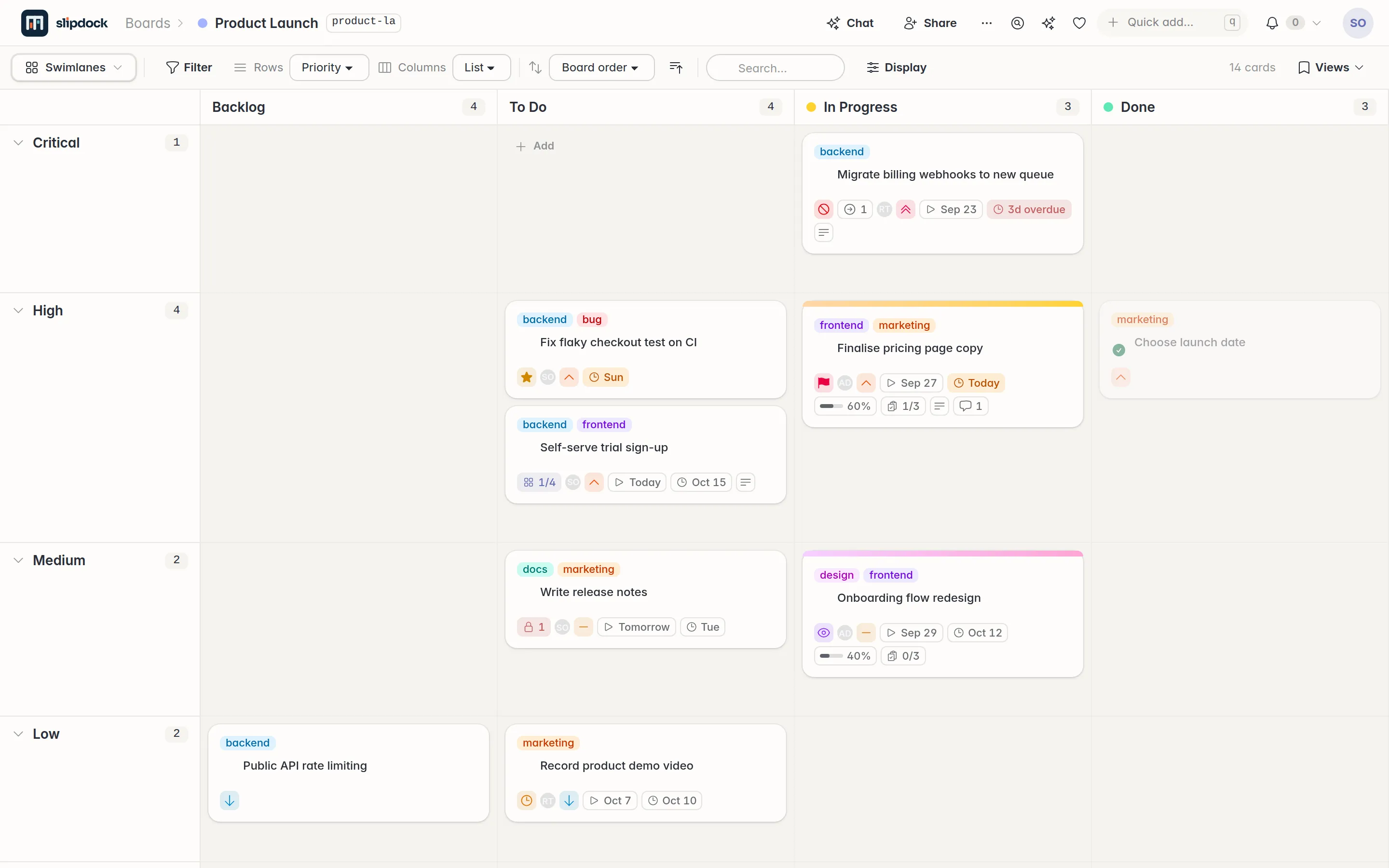
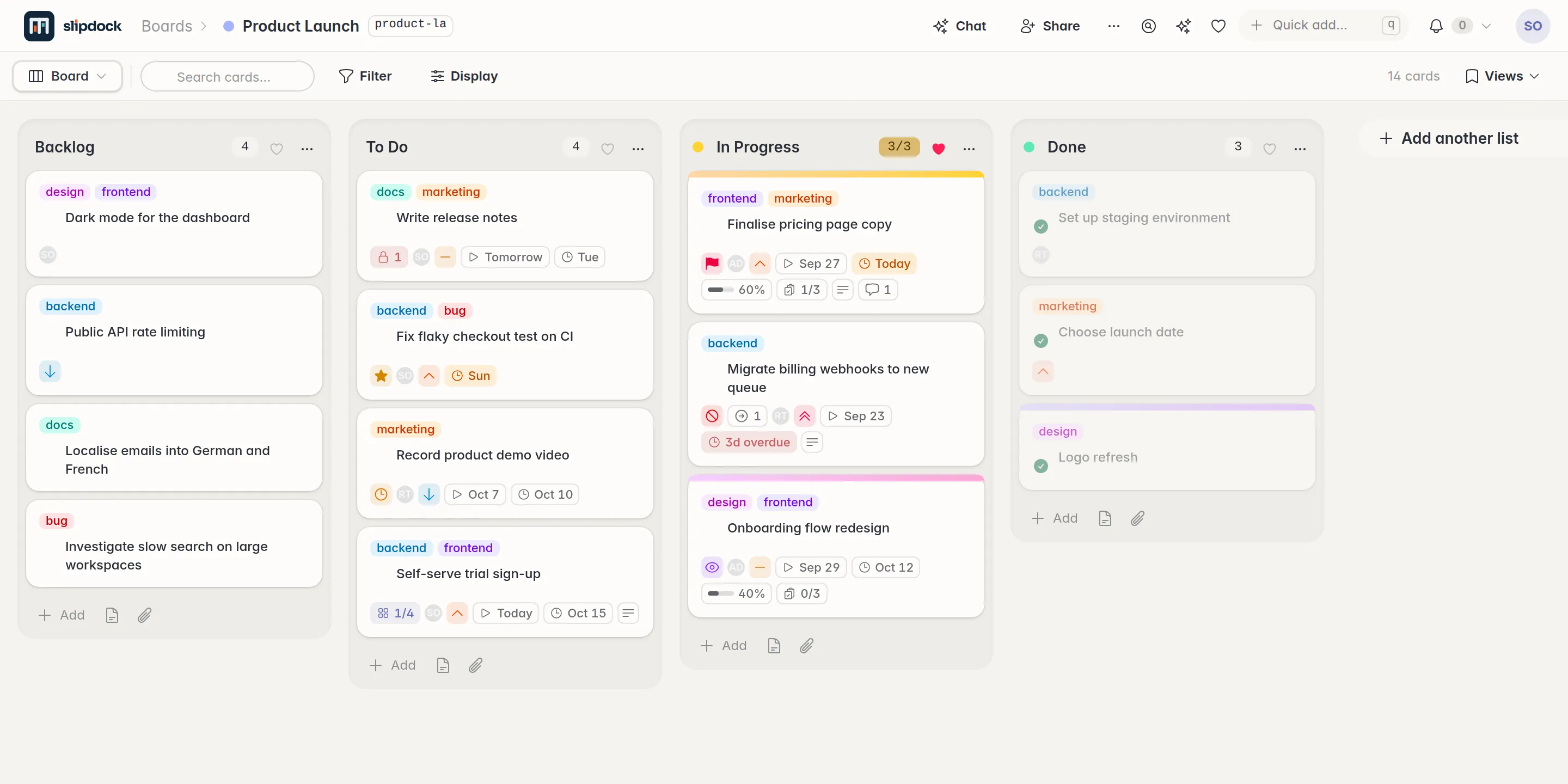
A Slipdock board with Backlog, To Do, In Progress and Done lists, each card showing tags, flags, dates and progress
Fig. 1 A board. Tags, flags, dates, checklists and roll-up progress, all on the card face. And if you just want a great to-do list, you can switch off the extras. Your choice.

Never again

How would you like to never do these things again?

  1. 01

    Keep one backlog for your big ideas, and a completely separate one for the nitty gritty.

    Any card can become a board of its own, so the idea and every task under it live in one tree, and progress rolls up.

  2. 02

    Write the stakeholder update.

    Post a status on a card in a click. The Narrative view tells anyone what happened to a set of cards over any date range.

  3. 03

    Ask your exec team to vote on the roadmap in something too complicated for them to use.

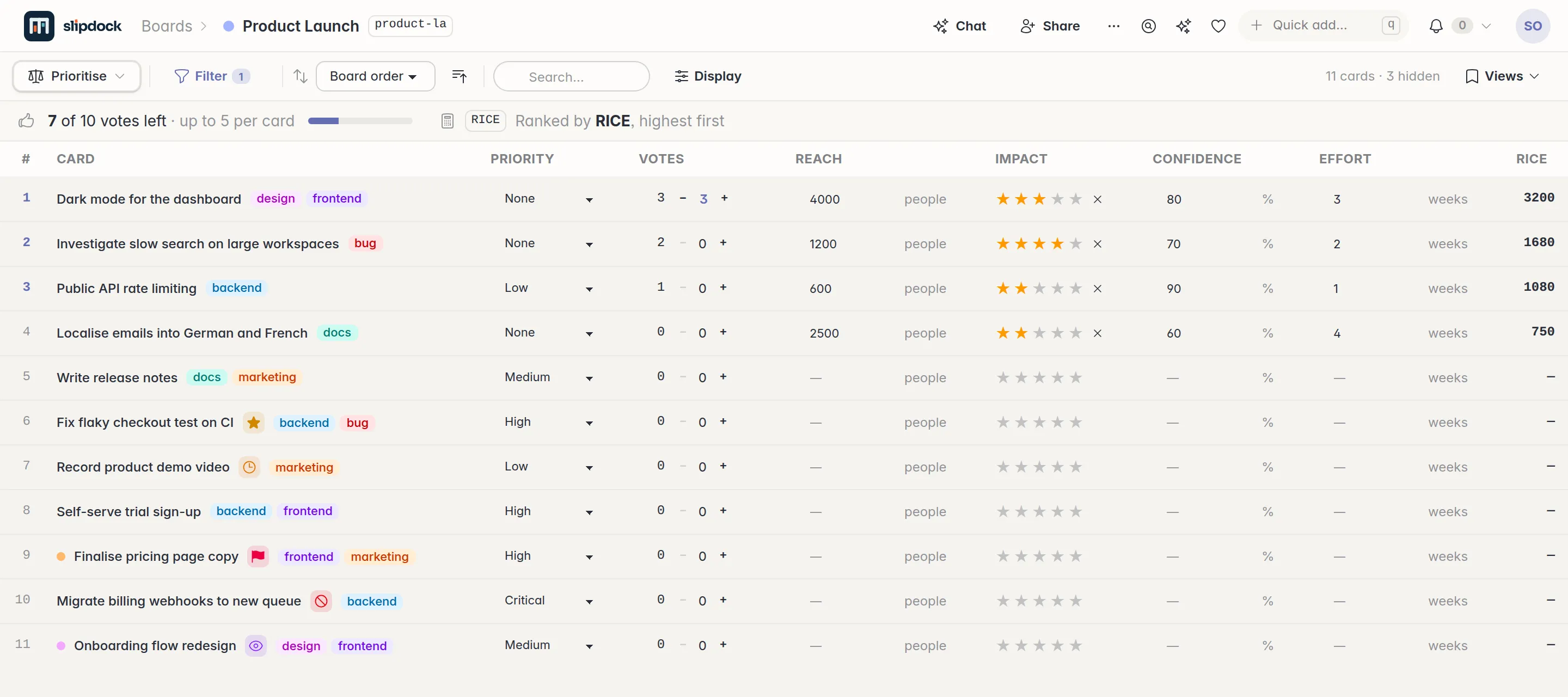
    Budget voting sits right on the Prioritise view: everyone gets a set number of votes to spend. Share the board and they are in.

  4. 04

    Copy the backlog into a spreadsheet to plan the sprint, then draw the burndown by hand.

    Add cards… lays out every list you plan from at once, with priority, RICE scores, votes and estimates, and keeps a running total as you tick. Burndown and velocity draw themselves.

  5. 05

    Write an integration so that X happens whenever Y does.

    Write a sentence instead. "When a card lands in Done, email ops@example.com" becomes a rule the app runs for you.

  6. 06

    Learn yet another project management tool.

    Lists, cards and pages. Want only a to-do list? One tick turns a board into exactly that. Your first sign-in comes with a Getting Started board that explains the app using the app.

Slipdock puts an end to all that.

Because it is built by people who build software in the real world. The world where work ends up spread across lots of lists, where the stakeholders are demanding and will not use your systems, and where every new tool costs you time learning concepts you never needed.

Built to replace

Kanban boards
TrelloFizzyAsanaMonday.comClickUpWrikeBasecampMicrosoft PlannerMeisterTaskBusinessmapSmartsheetTaigaWekanPlanka
Issue and bug tracking
JiraLinearGitHub IssuesGitLab IssuesAzure DevOps BoardsYouTrackShortcutBugzillaRedmineMantisBT
Roadmaps and discovery
Jira Product DiscoveryAha!ProductboardProductPlanRoadmunkAirfocus
Wikis and docs
ConfluenceNotionCodaSlabNuclino
Homegrown trackers
Notion project databasesObsidian project vaultsThe project spreadsheet
Status updates
AtlasRangeStatus HeroThe weekly status email

01  Plain English

Tell it what you want, or have your Agent tell it for you.

  1. Automate Flag any card that is more than 3 days overdue as urgent, and email jane@example.com.

    A model reads the sentence once and writes the rule. From then on the app runs it, on every change and on a timer. The common ones are ready-made: pick one, fill in a form, no model needed.

  2. Command Split this card into 3 sub-cards.

    Edit mode shows you exactly what it will change. Nothing applies until you say so.

  3. Ask Across all my boards, what tasks are slated to take less than a day?

    It searches every board you can see, then answers the question in prose.

  4. Find Where is the card about the invoicing bug that came in last week?

    Search by meaning, comments and status updates included. The card never has to say "invoice".

Your key, your call The AI features run on your own OpenRouter key, or on any OpenAI-compatible model you run yourself (LM Studio, Ollama, llama.cpp, vLLM), so nothing leaves your network. Neither one, no AI features, and nothing about your boards is sent anywhere on your behalf.

02  Subcards

Any card can become a board of its own.

An epic and its tasks live in one place, nesting as deep as the work does. Open a card and you are on its board; close it and everything below rolls up to the card face.

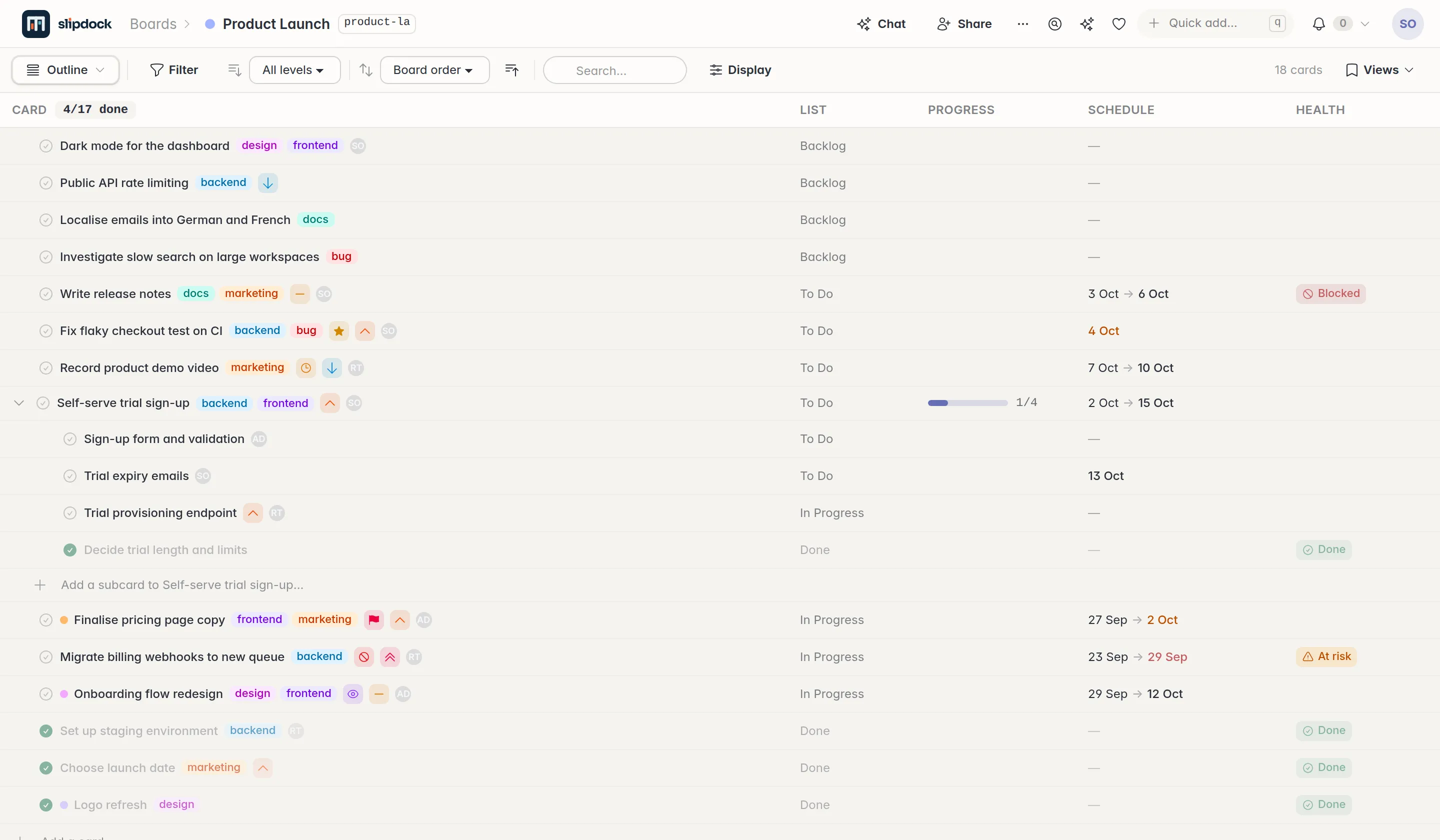
Leaves done, effective dates, slip, anything blocked further down, and a health pill computed from all of it. The outline view shows the whole tree at once, and My work gathers everything assigned to you across every board.

03  Only what you need

A shopping list or a sprint. Use as much of it as the job wants.

Everything past a to-do list is optional. Sprints, estimates, health reports and dependencies wait until you go looking for them, and a single setting on a board puts all of them away.

  1. One tick

    Just a to-do list

    Tick Simple board in a board's settings and it becomes a plain to-do list. The project machinery leaves the card, the badges leave the tiles, and two views leave the menu:

    • % complete
    • Start dates
    • Health
    • Time tracking
    • Votes
    • Dependencies
    • Timeline
    • Prioritise

    Title, due date, priority, tags, checklists, assignees and comments all stay. Nothing is deleted: untick it and everything comes back. Subcards made on a simple board start simple too.

  2. The default

    A project

    Subcards that roll up, dependencies, health and the timeline, for work with more than one moving part.

    Time tracking is there if you want it: a timer on the card, time spent against an estimate. Ignore it and it stays out of the way.

  3. Opt in

    Sprints

    Make a sprint board and each card on it is a sprint. New sprint dates the next one, and Add cards… plans it from your backlogs, with scores, estimates and running totals side by side.

    A Charts button draws each sprint's burndown and the board's velocity.

    No sprint board, no sprints. Nothing elsewhere changes.

04  Views

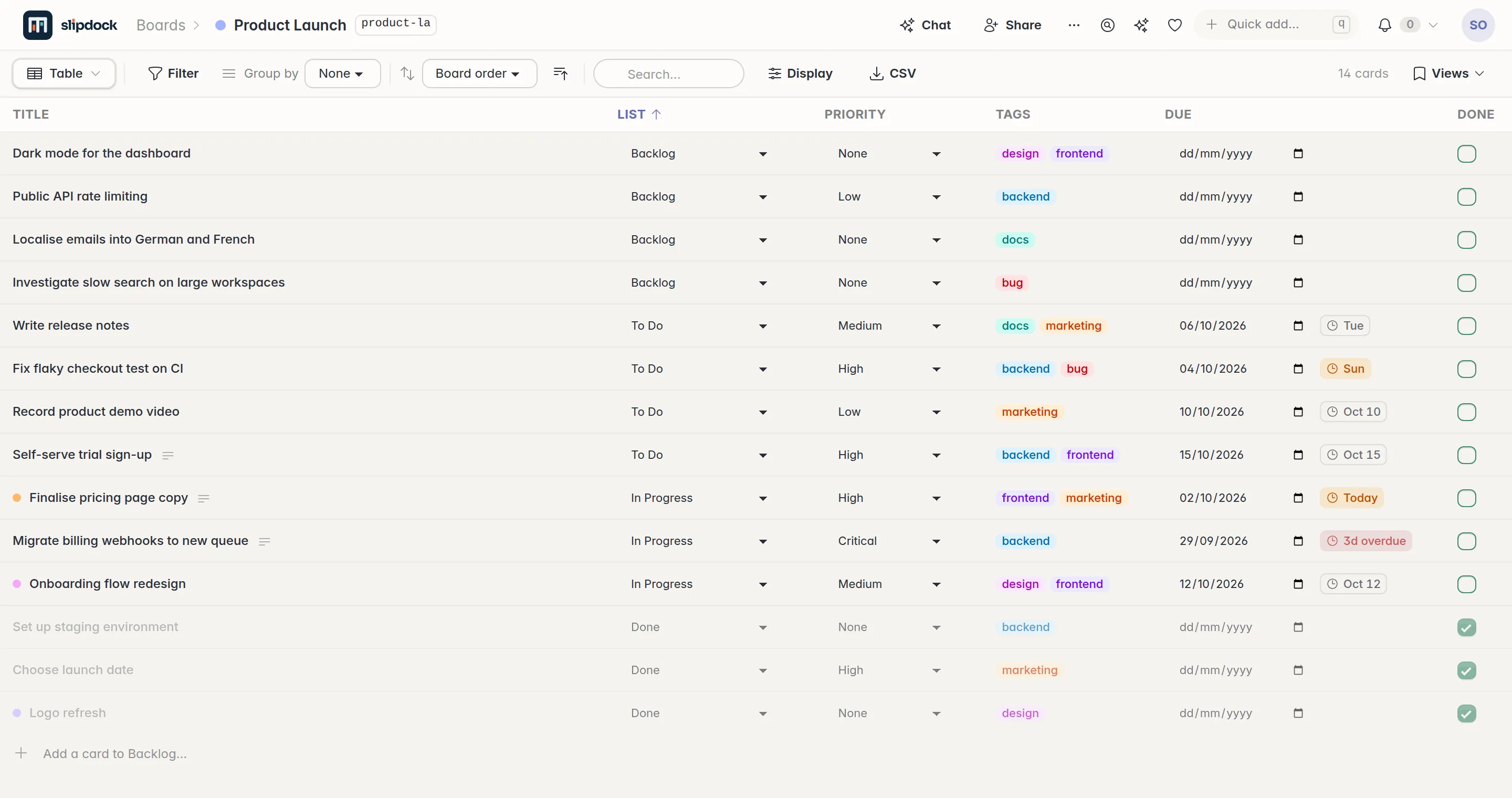
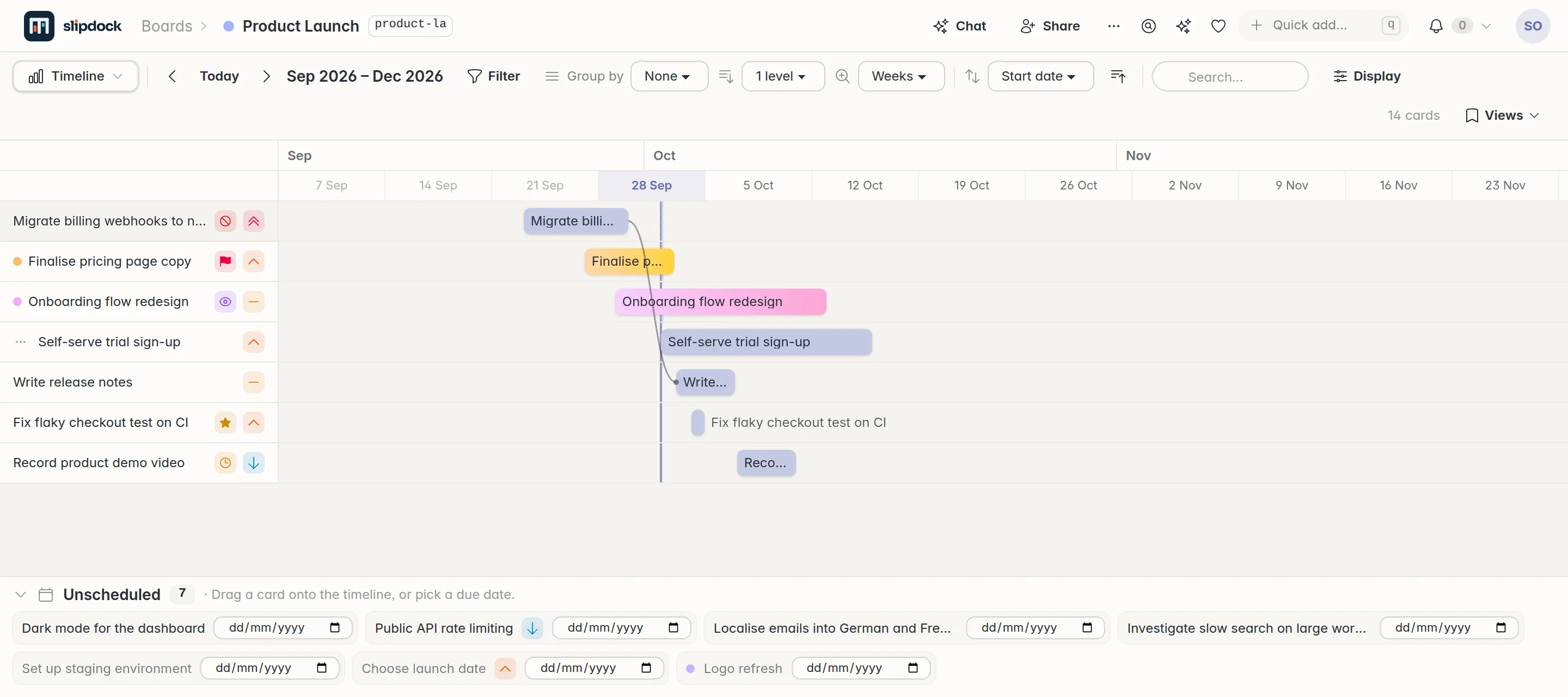
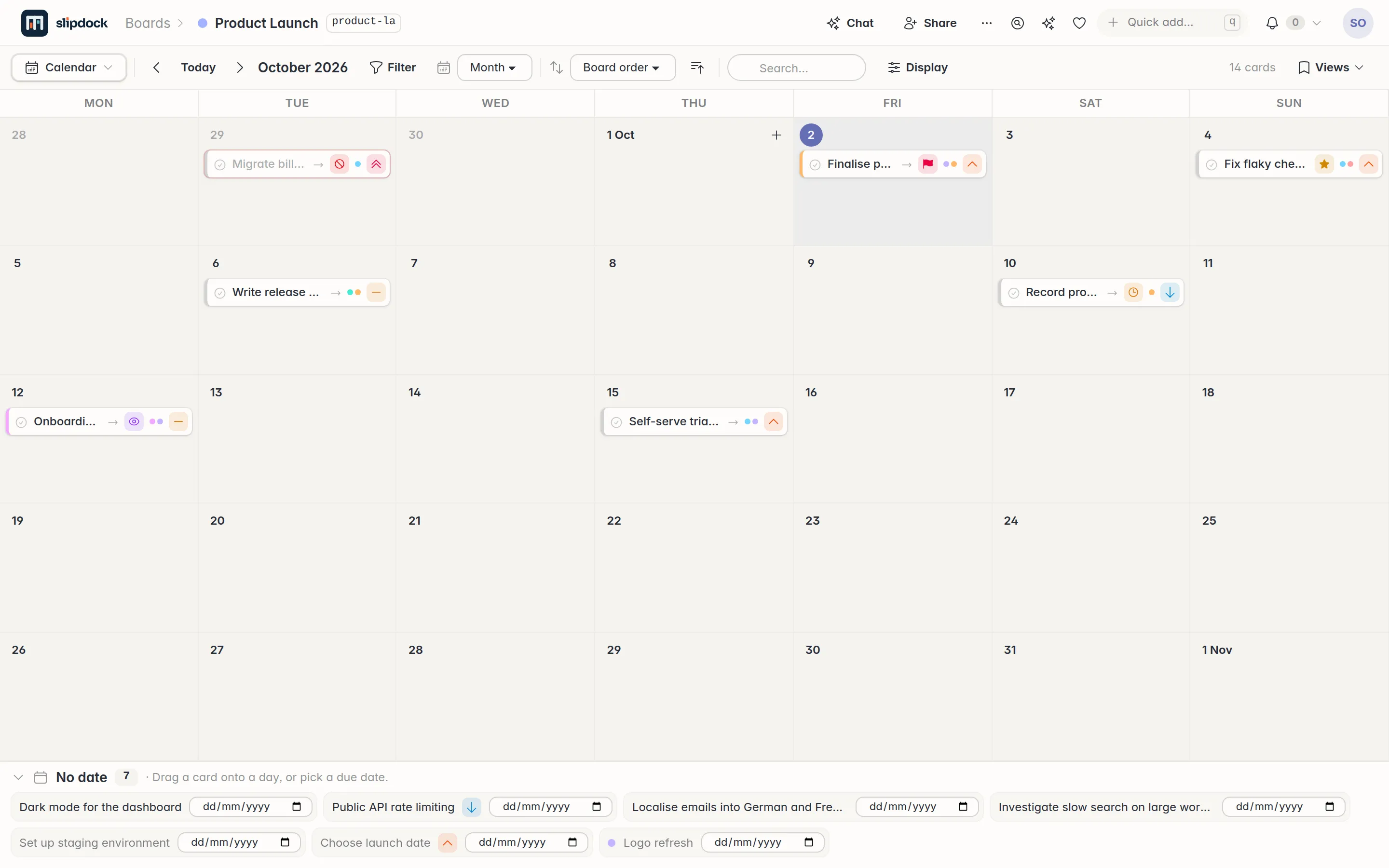
Seven views of the same cards.

Nobody keeps a second copy. Each view has its own filters and display options, and any of them can be saved, shared or published.

The board view of a Slipdock board
Fig. 2.1 Lists and cards. Drag, drop, flag, and see roll-up health at a glance.

05  Wiki

The documentation sits beside the work.

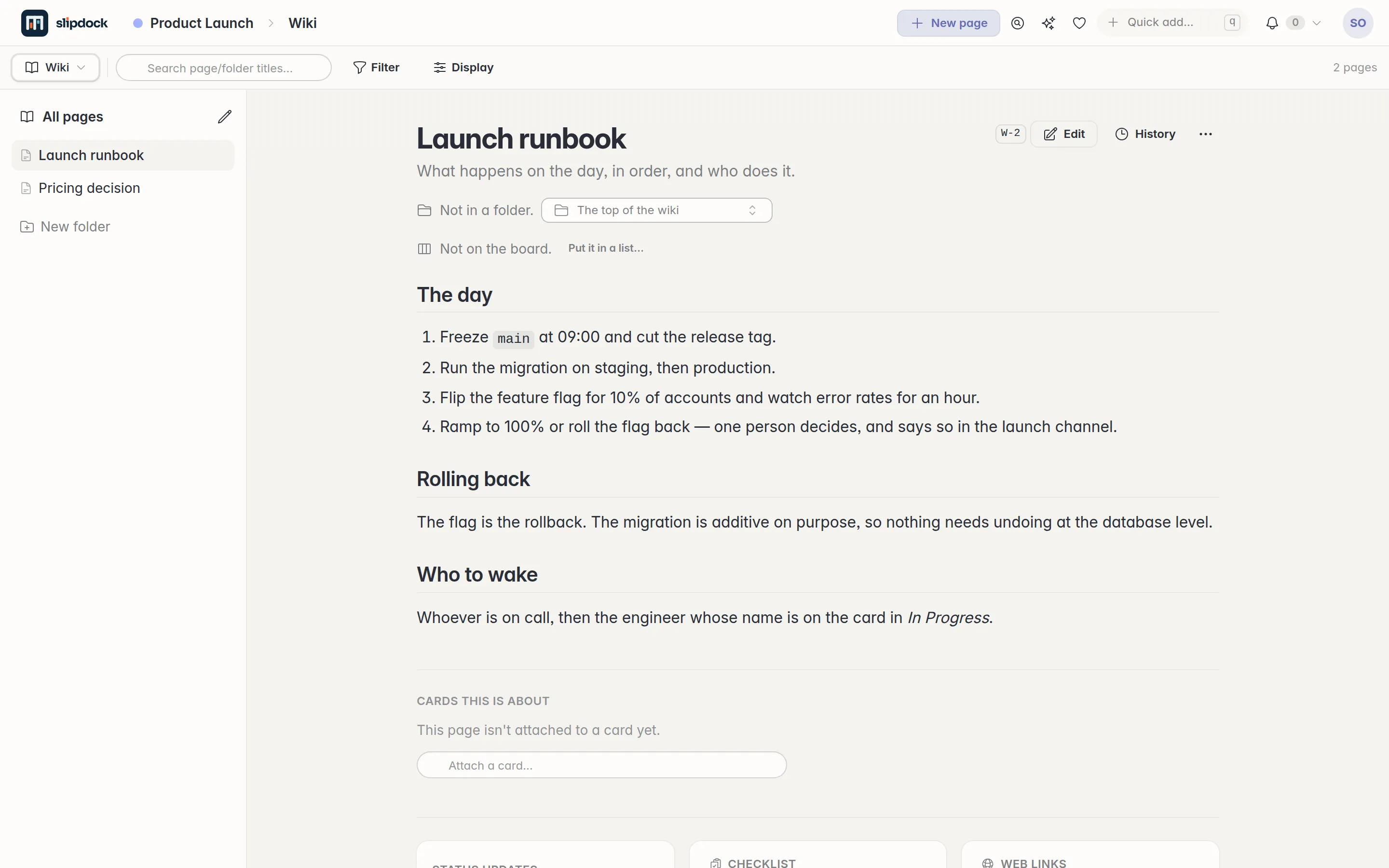
Every board can carry a wiki. Every card can carry one too. Markdown pages in a tree of folders, with [[links]], live card chips, live query blocks, backlinks, revisions, templates and public links.

So the decision about pricing is a page attached to the pricing cards, not a document in another product that nobody can find in six months.

A wiki page called Launch runbook, beside the board it belongs to
Fig. 3 A runbook, filed on the board it runs.

06  MCP, API and CLI

Agents work the board the way a person does.

Slipdock is an MCP server, so your AI agent can work your boards directly. Chat about your work, have it create the cards, and run loops off the back of them. And you get a JSON API and a command line tool too.

  • In Claude or any other AI app that supports MCP, add https://app.slipdock.us/mcp as a custom connector, sign in and approve it.
  • Its tools read, search, add, move, comment on and complete cards, and write wiki pages.
  • Tokens can be read-only, confined to named boards, and set to expire. Revoke any of them at any time.
  • The server ships agent skills, and /api/guide describes your boards to whatever is driving them.

07  And the rest

The details that decide whether you keep using it.

LiveEveryone sees the same board
Built on Phoenix LiveView, so every browser looking at a board updates the moment anything changes. No refresh button.
PlanningRoadmaps without a second tool
Dependencies with cycle detection, milestones, list horizons, formula fields for RICE and ICE, budget voting, typed links and goals.
SharingShare exactly what you mean to
Passwordless sign-in and groups. Read-only or editable grants on a whole board, a single card, one wiki page or a saved view.
PortableNothing here is a one-way door
A whole board tree exports to one JSON file that another Slipdock reads back: cards, subcards, fields, dependencies and the wiki. Trello boards import as they are.
TimeTime tracking on the card
A timer, time spent and an estimate, in minutes through to months. The bar turns amber near the estimate and red past it.
TeamsEveryone on the card who is on it
As many assignees as a card needs, each with a swimlane of their own. Type @ in a comment and the person named gets an email with a link.
NarrativeThe update writes itself
Pick a set of cards and a date range, and the Narrative view tells you what happened to them. Stakeholders get a story, not a ticket dump.
OnboardingA tour made of the thing it explains
Your first sign-in comes with a Getting Started board: a dozen real cards, an epic, subcards, a working automation and three wiki pages.
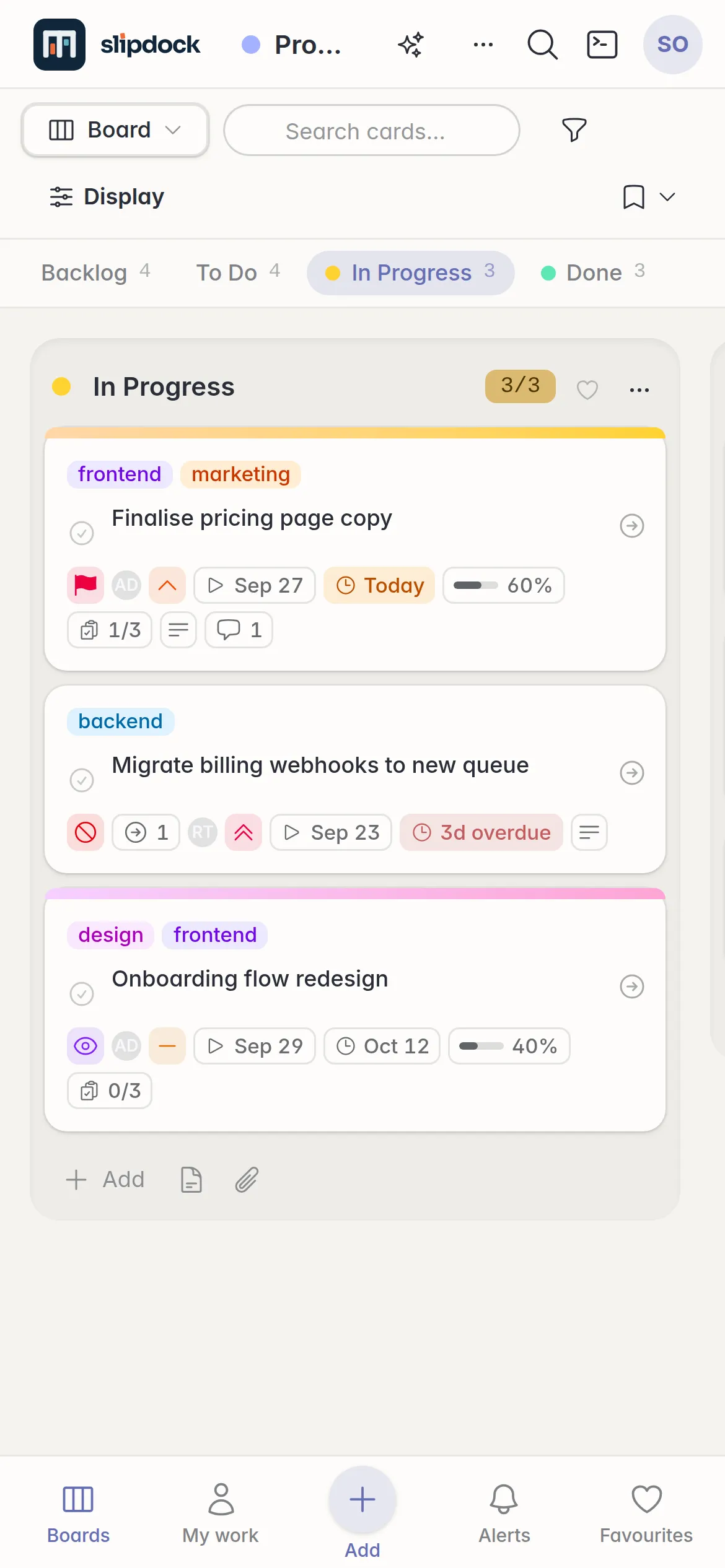
A Slipdock board on a phone, one list at a time with a bottom navigation bar
Fig. 4 Below 640px it becomes a pager, not a sideways scroll. On a desktop, there is a command palette and a key for every board.

Two ways aboard

Use ours, or run your own. Both are free.

The hosted app and the self-hosted one are the same software, with the same features.

Hosted

app.slipdock.us

Free forever

Every feature, nothing held back, for up to 200 cards. Sign in with your email and you are on a board in under a minute.

The limit counts cards on boards you own. Working on someone else's board costs you nothing.

Start on a board

Self-hosted

Your server

Free of charge

No card limit and no account with us. One compose file runs the app and its Postgres database, both kept in Docker volumes you can back up.

  • Open source under the AGPL-3.0
  • Images for amd64 and arm64
  • Run it for yourself, a team, or as a small shared service
See the three steps

08  Self-host

Running in about five minutes.

You need Docker with the Compose plugin. There is nothing to clone and nothing to compile: the image is published, and a short script asks five questions and writes your settings.

Open the address you gave it, follow the setup wizard, and the server is yours. There are instructions for Windows, TLS proxies, backups and upgrades in the README.

  1. 1 Get the two files

    mkdir slipdock && cd slipdock
    curl -O https://raw.githubusercontent.com/dadamsuk/slipdock/main/compose.yaml
    curl -O https://raw.githubusercontent.com/dadamsuk/slipdock/main/setup.sh
  2. 2 Answer five questions

    sh setup.sh
  3. 3 Start it

    docker compose up -d

A word on how it was made

Built with AI. Not vibe coded.

Of course AI wrote a lot of it. But Slipdock started from three decades of managing projects and writing software, was planned before it was built, is held up by a serious test suite, and has been security reviewed by several different coding agents. It was made for a real job: running real projects, every day.